

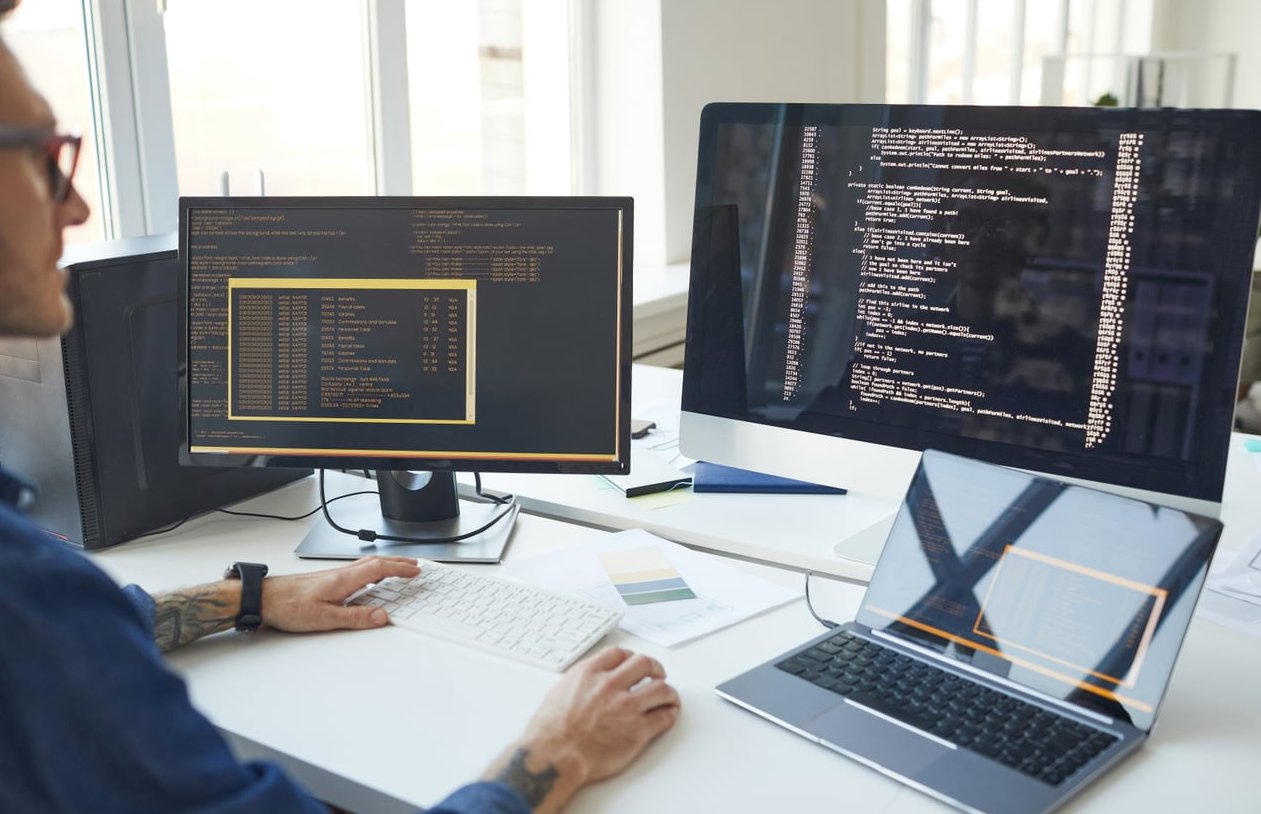
If you spend eight or more hours a day staring at code, a single screen quickly becomes the bottleneck between you and your productivity. A well configured dual monitor setup for programming lets you keep your IDE, terminal, browser, documentation and chat tools visible at the same time, which cuts context switching and shortens your debugging loops.
This guide goes beyond the usual “buy two screens” advice. We will walk through the physical connections, the OS level configuration on Windows, macOS and Linux, the window management tools that actually save keystrokes, and the ergonomic placement that prevents the neck pain most developers learn about the hard way.
Why Two Monitors Beat One Ultrawide for Coding
The debate between dual monitors and a single ultrawide comes up constantly on Reddit and Quora. For pure coding workflows, two separate panels usually win for three reasons:
- Hard bezels create natural workspace zones, which helps your brain assign one task per screen.
- Window snapping is more predictable because you snap to a physical edge rather than guessing at a virtual midpoint.
- Mixing screen sizes and orientations is trivial, for example a horizontal main screen plus a vertical secondary screen for long log files or documentation.

Choosing the Right Two Monitors
Recommended Specifications for 2026
| Spec | Minimum | Recommended |
|---|---|---|
| Size | 24 inch | 27 to 32 inch |
| Resolution | 1440p | 4K or 5K |
| Panel type | IPS | IPS Black or OLED with text fix |
| Refresh rate | 60 Hz | 90 to 120 Hz |
| Connectivity | HDMI 2.0 | USB-C with power delivery |
A popular configuration that simpleprogrammer.com also endorses is one larger primary monitor paired with a smaller secondary monitor, often rotated 90 degrees to display vertical code, logs or API docs.
Step 1: Physically Connect Your Monitors
On a Desktop PC
- Check that your GPU has at least two video outputs. Most modern cards offer one HDMI plus two or three DisplayPort outputs.
- Use DisplayPort 1.4 or HDMI 2.1 for any 4K display running above 60 Hz.
- Plug both monitors directly into the dedicated GPU, never the motherboard outputs, unless you have an integrated graphics only system.
On a Laptop
- Identify your laptop ports: HDMI, Mini DisplayPort, USB-C or Thunderbolt 4.
- For two external monitors, a Thunderbolt or USB-C docking station is the cleanest solution, since it handles video, power and peripherals through one cable.
- Apple Silicon MacBooks have specific limits. The M4 Pro and M4 Max support multiple external displays natively, while the base M4 chip is limited to two external monitors only when the lid is closed, or one with the lid open.

Step 2: Configure Your Operating System
Windows 11
- Right click the desktop and select Display settings.
- Drag the monitor icons so they match the real physical position on your desk, including vertical alignment.
- Set Scale to 150 percent for 4K at 27 inches, or 125 percent for 1440p at 27 inches.
- Choose Extend these displays, never duplicate.
- Designate your primary monitor by clicking the screen and ticking Make this my main display.
macOS Sequoia and Sonoma
- Open System Settings, then Displays.
- Click Arrange and drag the screens to mirror your physical layout.
- Drag the white menu bar to set your primary display.
- Under each monitor, pick a scaled resolution. For non-Retina externals, choose the option labelled More Space or use an app like BetterDisplay to enable HiDPI smoothing.
Linux (GNOME, KDE and tiling WMs)
- On GNOME or KDE Plasma, open Settings then Displays and arrange your monitors visually.
- For fractional scaling on Wayland, enable it through the desktop settings or with
gsettings set org.gnome.mutter experimental-features "['scale-monitor-framebuffer']". - On X11 or tiling window managers like i3 or Hyprland, use
xrandrorwlr-randrto script the layout. Example:xrandr --output DP-1 --primary --mode 3840x2160 --output HDMI-1 --right-of DP-1 --rotate left.
Step 3: Install Window Management Tools
Native window snapping is decent but power users gain real speed with dedicated tools.
| OS | Recommended Tools |
|---|---|
| Windows | PowerToys FancyZones, Microsoft Snap Layouts, AquaSnap |
| macOS | Rectangle Pro, Raycast window management, Magnet |
| Linux | i3, Hyprland, KDE KWin scripts, GNOME Tiling Shell |
Define keyboard shortcuts for the layouts you actually use, such as IDE left half, terminal bottom right, browser top right. The goal is to recreate your workspace in two key presses after a reboot.
Step 4: Design Your Coding Layout
A productive dual monitor layout for developers typically follows one of these patterns:
- Main screen, IDE only. Secondary screen split between terminal, browser and Slack.
- Main screen split 70 / 30. IDE on the larger zone, local documentation on the smaller. Secondary screen for runtime preview and DevTools.
- Vertical secondary. Rotate the second monitor 90 degrees for log tails, Git diffs, long Markdown files and ChatGPT or Copilot side panels.
Step 5: Get the Ergonomics Right
This is the section most tutorials skip and the one your spine cares about most.
Monitor Placement Rules
- The top of your primary screen should be at or just below eye level when you sit straight.
- Place the primary monitor directly in front of you, not off to the side, even in a dual setup. Center the screen you stare at most.
- Keep both monitors at arm’s length, roughly 50 to 70 cm away.
- Angle the secondary monitor inward by 15 to 30 degrees so your eyes travel less and refocus faster.
Equipment That Makes a Difference
- Dual monitor arms, ideally VESA 100×100, free up desk space and allow precise height adjustment.
- Bias lighting behind the monitors reduces eye fatigue during late night coding.
- A warm color profile in the evening, either through f.lux, Night Light or Night Shift, helps your sleep cycle.

Common Mistakes to Avoid
- Mismatched scaling between two monitors, causing fonts to look blurry when you drag windows across. Use the same DPI when possible.
- Placing the laptop screen off to one side as a third monitor without raising it to the same height as the externals.
- Using cheap HDMI cables that cannot sustain 4K at 60 Hz, leading to flickering or signal drops.
- Ignoring color profiles, which makes design and frontend work inconsistent between screens.
FAQ
Is a dual monitor setup really necessary for programming?
Not strictly, but it measurably reduces context switching. Most developers who try it for two weeks refuse to go back to a single screen.
Should both monitors be the same model?
Identical monitors give the cleanest look and predictable color, but mixing one large primary with a smaller rotated secondary is often more productive for coding.
Can I run two 4K monitors from a single USB-C port?
Yes, if your laptop supports Thunderbolt 4 or USB-C with DisplayPort 1.4 Alt Mode and you use a quality dock. Older USB-C ports limited to DisplayPort 1.2 will force you to lower resolution or refresh rate.
What about using a laptop screen plus one external monitor?
It works, but the height difference creates neck strain. Raise the laptop on a stand to align it with the external, or close the lid and use the external as your secondary.
Horizontal or vertical for the second monitor?
Vertical wins for reading code, logs and documentation. Horizontal wins for video calls, dashboards and split terminal panes. Pick based on which task dominates your week.
How much should I spend on a coding dual monitor setup in 2026?
Plan around 600 to 900 euros for two solid 27 inch 1440p IPS displays plus arms. For 4K with USB-C power delivery, expect 1200 to 1800 euros for the pair.
A dual monitor setup is one of the highest return investments a developer can make. Get the placement right, automate your window layouts and your future self will thank you every single sprint.
0 Comments